At least, if you want to redefine a command, you should check what the current definition is. To do this you go into interactive mode. Namely, comment out the \end{document} line and run LaTeX on the file to get the * prompt.
First, you'll get a ? prompt. If you enter a return, then you should
see the * prompt. When you are at the * prompt, then you can type
\show \commandname. You should try, for example,
\show \vec. You should see that \vec is a
math accent. You could redefine it without much danger. However,
some commands are "primitive" TeX commands. They should not be
redefined. An example is \hangafter. Try showing it!
Although I have seen it said that you can also type the \show \commandname command into your document itself, and get the information in the log file and on the monitor, it did not work for me when I tried it.
New commands with arguments
The real power of commands comes when you use arguments with them. So, we want to get a new command that has arguments For this you will need to have at least one more argument for the command \newcommand. The number of arguments to be taken by the command that is being defined is specified in an optional argument to the command \newcommand. You place this new optional argument right after the first argument, which gives the name of the command that you are defining. It looks like this:
\newcommand{\name}[nargs]{command definition}
The arguments are referred to in the command definition as #1, #2, ..., #nargs.
There can be no more than 9 arguments.
Let's start with a simple example. Some people like to format the names of authors in small caps when they write an article. This can be done by using the small caps text-style command \textsc You could put a name, say Frobenius, in small caps by putting in your source code \textsc{Frobenius}, but it is better to have your source code indicate not only the formatting but also the reason for the formatting. You do this by defining a new command, say, \names as follows.
\newcommand{\names}[1]{\textsc{#1}}
The new command \names takes a single argument, a string of
text, which it converts to small caps. Thus, you could have a passage
in an article that looked like this:
We have made use here of an idea that goes back to \names{Frobenius}, who used it in his celebrated paper ...Then if you later decide to change the formatting of names in your document, you can simply redefine the command \names.
Here is another simple example. Suppose that in the symbol \Gamma_{jk}^{i}, the subscripts and the superscript change. You could set up a command that would allow you to replace the i, j, and k variables whenever you wished to. For example,
\newcommand{\vG}[3]{\Gamma_{#2#3}^{#1}}
Then you could type $\vG{a}{b}{c}$ to get an upper case
Gamma with superscript a and subscripts b, c. There is no reason
that the arguments have to be single characters. You could make
each argument a whole word or even a phrase.
Suppose that you will almost always use your new command with the first argument taking a particular value, say x. You can make x the default value of the first argument to your command and make first argument to your command optional. That way, you can invoke the command without specifying the first argument most of the time. When you want to override the default, you can do it by putting in the optional argument. To do this, you specify the default value by an optional argument (hence in square brackets, []) to \newcommand immediately after the nargs argument. Thus, it will be the third argument to \newcommand. It looks like:
\newcommand{\name}[nargs][default#1]{command definition}
Here is an example taken from Grätzer's book Math into LaTeX.
\newcommand{\Sum}[2][n]{#2_{1}+#2_{2}+\cdots+#2_{#1}}
The new command that is defined in this example, \Sum has
two arguments. The second argument is required. The first argument is optional
and has a default value n. In the example the arguments to \newcommand have the following meanings:
- [2] specifies that the new command, \Sum, will have 2 arguments; it is an optional argument for \newcommand.
- [n], another optional argument, specifies the default value for argument #1 of \Sum: namely n here.
- #2 refers to the second argument of the new command \Sum. you can use emacs editing for your command line in a UNIX shell provided you are using tcsh.
- #1 refers to the (optional) first argument of \Sum.
EXERCISE: To understand what the commands in the examples do, create a LaTeX file, with \newcommand lines to define the new commands \names, \vG and \Sum as above. This is usually done in the preamble (that is, before the \begin{document} line), but it can be done anywhere in the document before the new command is used. Try out the following lines in the document body, leaving a blank line between them so that the typeset formulas will be displayed separately:
- \names{Frobenius} \names{Gr\"{a}tzer}
- $\vG{a}{b}{c}$
- $\Sum{x}$
- $\Sum{t}$
- $\Sum[i]{a}$
The ensuremath command
If you want to use a command in both math mode and text mode, then the way to do it is to use
\ensuremath{math code}
This will ensure that its argument is always put in math mode. Namely,
it will put $ signs around the argument if there are none. In the
book The LaTeX Companion Goosens-Mittelbach-Samarin
give the following example:
   \newcommand{\avec}[1]{%  arg1: the name of a vector
               \ensuremath{#1_1,\ldots,#1_n}}
   The series \avec{x} or $\avec{y}$  \ldots
EXERCISE: Convert the commands \vG and \Sum so that they will work in a text environment.
Finished?
If you have done all the above activities, and there is still time left, here are some other activities you can do.
- Help someone else.
- Think about the projects.
- Get started on the homework.
Homework for after class
You should have time to start on these during class.
- Continue to explore a mathematical topic, with a view to using what you find as part of a project
- Revise your list of links to mathematical sites that you think are worth revisiting. Include the list of links either on your very basic Web page or as a separate document linked to that Web page.
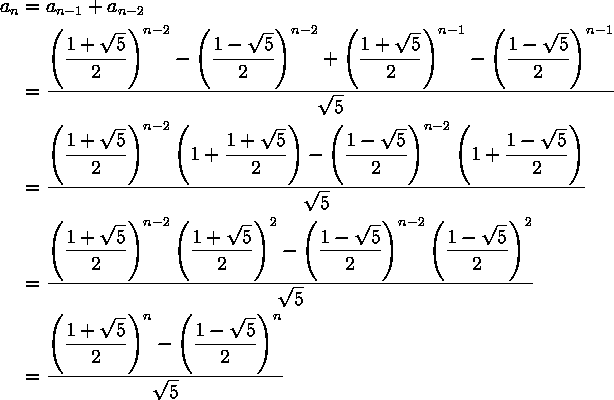
- As an exercise for LaTeX custom command definitions, try
typesetting the monster equation below from Michael Spivak's book,
The Joy of TeX. You should be able to save a lot of
effort by using your own commands to typeset parts of the equation.
To use the align environment, you require the amsmath package, which can be loaded with the line \usepackage{amsmath} in the preamble (before the line \begin{document}. To get the fractions correctly sized in the numerator, you can use the command \dfrac instead of \frac. Amaze your friends by showing them how short (in terms of bytes) your source code can be!
email to:Martin Karel