<CENTER>
<TABLE ALIGN=RIGHT>
   <tr>
      <td>Upper Left</td>
      <td>Upper Right</td>
   </tr>
   <tr>
      <td>Lower Left</td>
      <td>Lower Right</td>
   </tr>
</TABLE>
</CENTER>
This is displayed as:
| Upper Left | Upper Right |
| Lower Left | Lower Right |
<CENTER>
 <TABLE BORDER>
   <tr>
       <td>Upper Left</td>
       <td>Upper Right</td>
   </tr>
   <tr>
       <td>Lower Left</td>
       <td>Lower Right</td>
   </tr>
 </TABLE>
</CENTER>
Here is how it is rendered:
| Upper Left | Upper Right |
| Lower Left | Lower Right |
Here is a table taken from the Rutgers library web-site.
<CENTER><TABLE BORDER=5 WIDTH=450 CELLPADDING=10 CELLSPACING=10>
  <TR>
      <TD ALIGN=MIDDLE><A HREF="general.shtml">
        General Subjects</A><BR></TD>
      <TD ALIGN=MIDDLE><A HREF="arthum.shtml">
        Arts & Humanities</A><BR></TD>
      <TD ALIGN=MIDDLE><A HREF="science.shtml">
        Science, Technology & Medicine</A><BR></TD>
  </TR>
  <TR>
      <TD ALIGN=MIDDLE><A HREF="socsci.shtml">
        Social Sciences, Business & Law</A><BR></TD>
      <TD ALIGN=MIDDLE><A HREF="gov.shtml">
        Government Information</A><BR></TD>
      <TD ALIGN=MIDDLE><A HREF="alpha.shtml">
        Alphabetized list</A> of all indexes<BR></TD>
  </TR>
</TABLE></CENTER>
You can view the Rutgers library
Subjects Page,
which contains the table.
If you view the source HTML for the Subjects Page, you'll notice the use of tables to position graphics. Also notice that the table is captioned by a centered header above it on the Subjects Page.
To make a caption part of the table, after the <TABLE> tag, add the pair of tags <CAPTION>...</CAPTION>. For instance,
<CENTER>
<TABLE BORDER>
  <CAPTION>This is a very simple table</CAPTION>
   <tr>
       <td>Upper Left</td>
       <td>Upper Right</td>
   </tr>
   <tr>
       <td>Lower Left</td>
       <td>Lower Right</td>
   </tr>
</TABLE>
</CENTER>
Here's how it is rendered:
| Upper Left | Upper Right |
| Lower Left | Lower Right |
Notice that the default placement of the caption is directly above the table, centered, and that if the width of the text exceeds the width of the table, then the text flows onto additional lines. You can also choose to put the caption at the bottom of the table by using the attribute ALIGN with the value BOTTOM inside the caption start tag.
Of course, you need to put labels on the columns and rows of a
table. To label the columns, you put in a header row
using the
tag pair <th>...</th> for each entry. For the table
above, we would need a new row at the top. It should have 3 entries,
(perhaps with the first entry left blank) because the rows are also going to
need labels, which requires a new entry in each row.
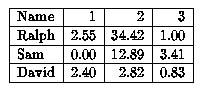
EXERCISE:In your test page, put an HTML version of the table
that we used in the third class as a LaTeX exercise. Try to get the alignment of material in the cells to match the picture. You may want to adjust the minimum space used between the cell boundary and the text inside. This is done with the CELLPADDING attribute, whose argument is always given in pixels.
For example, you can use the command \setlength to adjust various page parameters. For example, to make a very narrow page, you might use the command
\setlength{\textwidth}{3in}
This goes in the preamble. That is, it goes somewhere between
the \documentclass command and the
begin{document} command.
Note that the first argument is actually a command name. You'll get an error
message if you try
\setlength{textwidth}{3in}
The units can be specified as in (inches),
pt (points: 72.27pt = 1in), pc (pica: 1pc = 12pt), mm (millimeters), which
are absolute measurements, and also as the relative units em and
ex, which are roughly the widths of the letters M and x,
respectively, in the current font.
\newcommand{\be}{\begin{equation}}
This line instructs LaTeX to create a new command with the name "\be"
to act as the command (with argument) \begin{equation}
Then, to put LaTeX into the equation environment, you can just type
\be.
If a command already exists with the name you have chosen, LaTeX will
give you an error message. You can insist on your own version by
substituting \renewcommand for
At least, if you want to redefine a command, you should check
what the current definition is. To do this you go into
interactive mode. Then you can type
\show \commandname. Try this with the command
\vec. You should see that \vec is a
math accent. That is, it is used in one of the mathematics modes to put
an accent on a character. In this case, the accent is a small arrow
placed above the character.
You could redefine the command \vec without much danger. However,
some commands are "primitive" TeX commands. They should not be
redefined. An example is \hangafter. To find out what
this command does, try using the * prompt to show it!
You can also type the \show \commandname command into
your document itself (for example, \show \hangafter) and get
the information in the log file and on the monitor.
<
\newcommand{\env}[1]{\texttt{#1}}
Here is its meaning. Define a new command "\env" with a single (required)
argument (which will be the name of the environment, of course). The
command will take the argument, which is called simply "#1", and display
it on the page in the text environment font called typewriter text, "tt"
for short. For example, whenever he typed the environment name "equation"
he would do so as
\env{equation}
A command can have up to nine arguments.
Here is an example based Grätzer's book Math into LaTeX. We will build from a simple command with no arguments. Call it "\Sum", and define it so that $\Sum$ will print an expression for the sum of terms c-subscript-i with i ranging from 1 to n.
\newcommand{\Sum}{c_{1}+c_{2}+\cdots+c_{n}}
Now, this is not so useful because if we wanted to use a variable other than
"n" for the upper limit of the sum, we would need another new command and
similarly if we wanted different summands, say T_1, T_2, ... rather
than c_1, c_2, ... . We can create a command with two required arguments,
the first one specifying the upper limit.
\newcommand{\NewSum}[2]{#2_{1}+#2_{2}+\cdots+#2_{#1}}
EXERCISE: To understand what this command does, create a LaTeX file, put the above \newcommand line into the preamble (that is, before the \begin{document} line, and try out the following commands in the document body.
\[
A=\NewSum{n}{a}
\]

\[
B=\NewSum{p}{T}
\]
You can also define a command with a single optional argument and one or
more required arguments. WARNING: The optional argument must come first.
Here is an example taken from Math into LaTeX.
\newcommand{\NNSum}[2][n]{#2_{1}+#2_{2}+\cdots+#2_{#1}}
The arguments to \newcommand have the following
meaning in the example:
EXERCISE: To understand what this command does, create a LaTeX file, with the \newcommand line in the preamble (that is, before the \begin{document} line, to define \NNSumand try out the following lines in the document body:
$\NNSum{x}$

$\NNSum{t}$

$\NNSum[i]{a}$
If you have done all the above activities, and there is still time left, here are some other activities you can do.
You should have time to start on these during class.