 with the image
vczjmrat.slt/.
If you look into your .mozilla directory by using
clam% ls -al .mozilla/[username]/[vczjmrat.slt]/where you put replace [username] with your own
clam username and replace
vczjmrat.slt with the
filename that mozilla has assigned in your directory
.mozilla, then you will find an interesting
collection of files, including an ldap file
(LDAP stands for Lightweight Directory Assistance Protocol,
and is used to retrieve such information as email addresses),
and a file bookmarks.html. The latter file, as
you would guess from the extension .html, is a
text file written (by the Mozilla browser, Firefox).
It contains your bookmarks.
For illustrating the main idea, let's assume that you
want to use your clam Firefox bookmarks
from the comfort of your home.
Previously we made a copy of our Netscape bookmarks file
and put it in a directory where it could be read by any
browser that we happened to be using:
html on our UNIX network's clam server.
One obvious problem with making a copy of your
.mozilla/[username]/[vc****.slt]/bookmarks.html file to be
viewed by your browser is that your copy is not going to reflect any
later changes that you make to your original bookmarks file
.mozilla/[username]/[vc****.slt]/bookmarks.html.
To see the changes you would have to update your copy manually, say by
copying the original bookmarks file again.
There would be an obvious advantage to having a hard link from
the bookmarks.html file, which is in your
.mozilla/vc****.slt directory, into your public browsing directory
html on clam. When you use a machine
off-campus, your browser could always show
your current clam Mozilla bookmarks file in
addition to your browser's own bookmarks file.
The hard link is set up by using the ln command. The syntax is
ln source-path/[file] link-path/[link].
For example, instead of making a copy of your bookmark file, you can create a hard link, as follows:
login or SSH to your
clam account
test.txt, and a hard link to it, say
test-link.txt. Change the test.txt file and then read
the link, test-link.txt.
The symbolic link is set up by using the ln command with the -s option and the syntax:
ln -s source-path link-path/.
WARNING: You would think that you could use a symbolic link in your html directory to your Netscape browser's bookmark file. Then you could always access your bookmark file easily even though you were using a browser on a different computer. However, this does not seem to work, because of problems with setting permissions.
For example, instead of making a copy of your bookmark file, we could have created a symbolic link, as follows:
However, the resulting link does not actually give read permission to "others", even if we change the permissions for the directories .mozilla and so on along the path, and for the file bookmarks.html, so the link does not seem to be useful for remotely viewing our Mozilla bookmarks file.
Sometimes, however, you may prefer that some words or fragments of
text be kept together on a single line. For example, if you refer to
somebody as
Beard.
To keep text on a single line, you can use the "no break" tag. For
example:
<nobr>This text is going to be kept on a single
line.</nobr>
As an exercise, create a small HTML document with the title "Test
Page" and link it to your very basic home page. Include the
following in your new page and view the page with a Web browser:
<nobr>This is sure a lot of text to keep on a single line, but it might
be interesting to see what happens if we just keep typing on and on and on ...
</nobr>
For keeping just two words or text fragments together, Netscape has introduced the character entity , the "nobreak space". It is a proposed standard according to Musciano and Kennedy; however, it does seem to be used commonly now in commercial Web pages.
On the one hand, specifying dimensions should speed the loading of the page, since the Web browser otherwise has to determine the dimensions of the image before it can start rendering the page. On the other hand, specifying dimensions of the displayed image gives you extra control over the displayed image independent of its natural dimensions. WARNING: if the dimensions you specify are not proportional to the dimensions of the original image, the result will be a distorted display. For example, compare the natural-sized image
with the image
One trick that can be used to good effect is to create a rectangular box and fill it with a given color by letting the SRC attribute have as its value the URL of a very small image. For example, if we have an image that has height of 1 pixel and width of 1 pixel, then
<img src="single-pixel.gif" height=3 width=640>
should create a horizontal rule in the given color. This can save network
bandwith. It could also save you the effort of creating new image files for
various shaped horizontal rules.
EXERCISE: Test this out by creating a horizontal rule with
some one color by using the above idea. Part of the exercise is to find a
an image and to get a single pixel GIF file from it by using the available
tools. You could start by downloading an image from the Web and then
checking the SGI man pages for imgview and
imgworks. Put the image on your test page or home page.
<A
HREF="http://www.rutgers.edu/"> <IMG
SRC="http://www.rutgers.edu/images/header.gif"  WIDTH=288 HEIGHT=144 ALT="Rutgers
header">  </A>
The resulting link looks like this:

The image has both its height and width reduced by half.
Notice the border, which most browsers put around the image to indicate that it is actually a link. You can control the thickness of the border. Use the border attribute in the IMG tag. The border is normally 2 pixels thick. The value of the border attribute should be the number of pixels thickness that you want. For example,
<A HREF="http://www.rutgers.edu/"> <IMG
SRC="http://www.rutgers.edu/images/header.gif" WIDTH=288 HEIGHT=144  ALT="Rutgers header" BORDER=8 ></A>
will produce the following link image:
You can eliminate the border by using BORDER=0 in the IMG tag. By the way, you may have observed that the Rutgers header.gif has the property that the background shows through the image: the header.gif is a so-called clear GIF. Without the border, it isn't so obvious where the image boundaries are, so if you eliminate the border, which the browser provides to show that the image is a link, then you should put in some text to inform the gentle reader that the image is a link.
The allowable content of a link container are pretty simple: text, breaks, images and headings. If you want your link contents to be in a different font, you just put the anchor into another container that will change the font.
EXERCISE In your very basic homepage (or in your test page), please put a link with the link contents given by an image. Note: in case you would prefer something other than the header.gif, there are loads of small icon-type images on the Web which can be used.
The standard LaTeX page styles are:
you can use the \pagenumbering{style} command to select a display style for the page numbers. The default style is arabic, but for an introduction you might want to use roman, which gives i, ii, iii, iv, and so on. Also available are Roman, Alph and alph. It is easy to guess what they do>
To get a page break, use the command \clearpage.
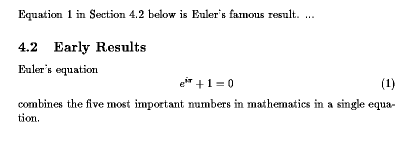
Here is an example of an equation with a label and a reference
to the equation. This is taken from Section 4.2 of LaTeX,
a Document Preparation System by Leslie Lamport, ©1994,
1985 by Addison-Wesley.
Equation~\ref{eq:euler}
Section~\ref{sec-early} below
...
\subsection{Early Results}
\label{sec-early}
Euler's equation
\begin{equation}
  e^{i\pi}+1 = 0 \label{eq:euler}
\end{equation}
combines the five most important numbers in mathematics in a single
equation.
If you have done all the above activities, and there is still time left, here are some other activities you can do.
You should have time to start on these during class.