
Network
Interface Card Configuration
To find out what speed and duplex a network interface card (NIC) has
been set to follow these directions:
Not all systems will be exactly the same. Software that has been
loaded, and the manufacturer that has made the NIC both play a
factor as to where you will find the setting for the NIC.
The below network cards are NOT
compatible on the Rutgers network :
Realtek (all models)
Netgear 311 and 312
Suggested network cards :
· Linksys
· 3Com
· Netgear 210, 310, 410
· D-Link
· Intel
For
Windows XP/2000
1) Goto
the Start
menu and choose the Control Panel.
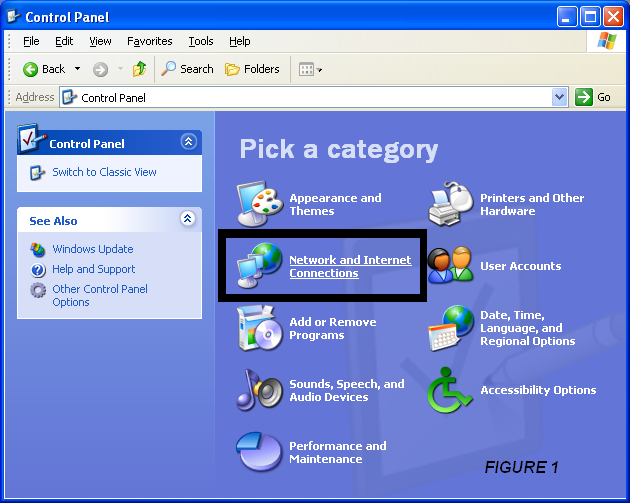
2) Choose
Network and
Internet Connections from
the Control Panel. (See figure 1)
3) Choose Network Connections.
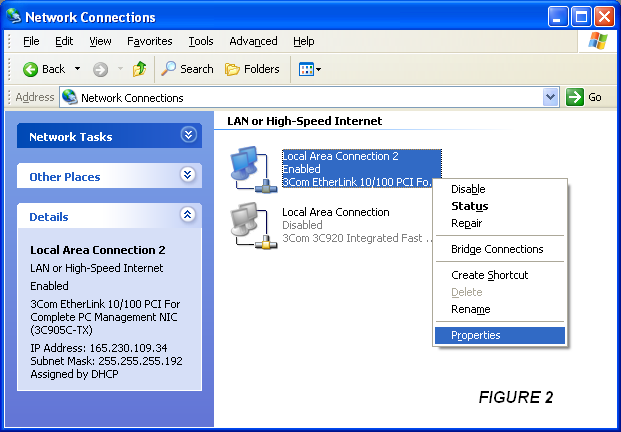
4) In this
window, choose the network card that is currently enabled.
Right-click on the icon that is enabled and choose Properties.
There may be multiple icons to choose from that include previous
settings for other locations such as wireless or the modem. Only look
at the enabled network card, as this is the one the PC is currently
using to connect to the network. (See
figure 2)
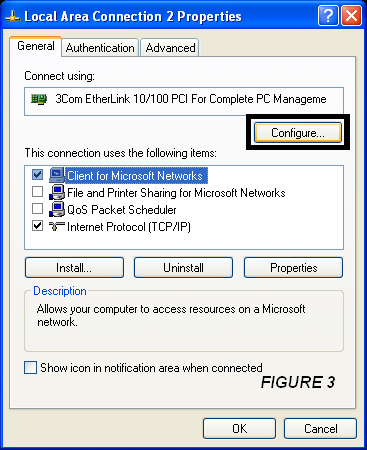
5) In the
enabled NIC Properties window (Actual name for the window will vary),
choose Configure...
for the NIC. (See figure 3)
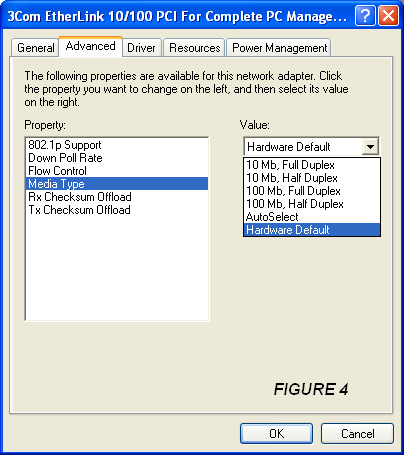
6)
This is another step that may vary, depending on what type of NIC that
is installed on the PC. But in the Configure window, go to the Advanced tab and look
for the following selections: media type, speed,
duplex. In the picture below, the type of NIC installed has a
setting for Media type that includes all possible settings. (See figure 4)
04.28.04 JFG